Mercedes Play Verification for Withdrawal: ID and Document Requirements PH
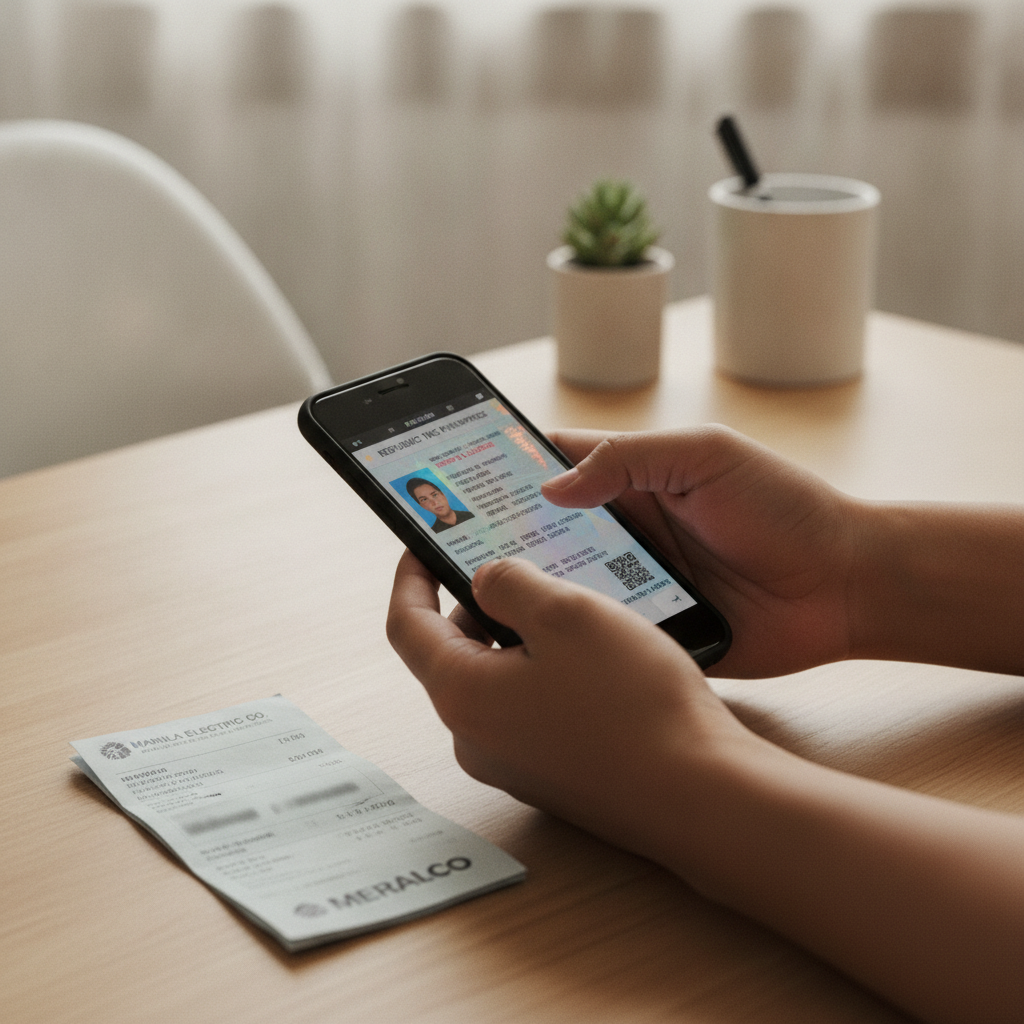
What Documents Mercedes Play Asks for Before Approving Cashouts
Mercedes Play requires account verification before processing your first withdrawal. The platform asks for two main types of documents: a valid government-issued ID to confirm your identity, and proof of address to match the details you provided during registration.
This verification step is standard across online casinos operating in the Philippines. Mercedes Play uses it to prevent fraud, comply with anti-money-laundering rules, and ensure payouts go to the rightful account owner. You can deposit and play before submitting documents, but you cannot cash out until verification is complete.
Most players submit their documents after their first win. However, starting the process early—before you request a withdrawal—saves time and avoids delays when you want your money.
21+ only. Mercedes Play is restricted to players aged 21 and over. If your ID shows you are underage, your account will be closed and any balance forfeited.
Accepted Philippine IDs and Proof of Address for Account Verification
Valid Government-Issued Photo IDs
Mercedes Play accepts any of the following Philippine government IDs:
- Philippine passport (not expired)
- Driver's license issued by LTO
- UMID (Unified Multi-Purpose ID)
- SSS ID or GSIS e-Card
- Postal ID issued by PHLPost
- Voter's ID from COMELEC
- PRC ID (Professional Regulation Commission)
- PhilHealth ID
- TIN ID (though some platforms may request an alternative)
- National ID (PhilSys)
Your ID must be current and not expired. The photo, name, date of birth, and ID number must be clearly visible. Mercedes Play will cross-check the name and birth date against the details you entered when you registered.
If you do not have any of these IDs, contact Mercedes Play support through live chat or the help section in the app to ask about alternatives. Some platforms accept a barangay certificate with a photo, but this varies.
Proof of Address Documents
Mercedes Play may ask for proof of address to confirm you live where you say you do. Accepted documents include:
- Utility bill (electricity, water, internet, or landline) dated within the last three months
- Bank statement showing your name and address, issued within the last three months
- Government-issued document with your current address (such as a barangay certificate or voters' certification)
- Credit card statement or loan statement (recent, with your name and address visible)
The name and address on your proof of address must match the details on your Mercedes Play account. If you live with family and bills are in someone else's name, or if you recently moved, contact support before uploading. They may accept a barangay certificate or a signed letter from the account holder, though policies differ.
If you use GCash or Maya for deposits and withdrawals, Mercedes Play may also request a screenshot of your verified e-wallet account showing your name. This helps confirm that the e-wallet belongs to you.
How to Upload Clear Photos of Your ID and Avoid Rejection
Poor-quality photos are the top reason for document rejection. Follow these steps to make sure your upload is accepted the first time.
Taking the Photo
- Use good lighting. Take the photo in a well-lit room or outdoors in natural light. Avoid shadows, glare, or reflections, especially if your ID is laminated.
- Lay the ID flat. Place your ID on a plain, dark background—a table or desk works well. Do not hold it in your hand, as this can cause blur.
- Capture all four corners. The entire ID must be in the frame. Do not crop out edges or corners.
- Keep it sharp. Make sure the camera focuses before you snap. Text, photo, and ID number should be crisp and readable. Blurry images will be rejected.
- No filters or edits. Upload the original photo. Do not apply filters, adjust brightness too much, or cover any part of the ID with your finger or a watermark.
If your ID is double-sided (such as a driver's license or national ID), take a clear photo of both the front and back.
For proof of address, photograph the entire page of the bill or statement. If it is a multi-page bank statement, capture the page that shows your name, address, and the statement date.
File Format and Size
Most platforms, including Mercedes Play, accept JPEG or PNG files. Keep file size under 5 MB per image—modern phone cameras produce files that fit this limit. If your file is too large, use a free image compressor app or reduce the photo resolution slightly.
Where to Upload
Log in to your Mercedes Play account on the app or website. Navigate to the account or profile section, then look for "Verification," "KYC," or "Documents." You will see fields to upload your ID and proof of address. Some platforms let you upload directly; others ask you to submit via email to a support address. Follow the on-screen instructions.
After uploading, you should see a confirmation message or a status that says "Pending Review" or "Under Verification."
Typical Verification Approval Time and What Happens If Documents Are Declined
How Long Verification Takes
Mercedes Play typically reviews documents within 24 to 48 hours on business days. In some cases, especially during weekends or holidays, it may take up to 72 hours. If you submit documents on a Friday evening, expect a response by Monday or Tuesday.
You will receive an email or an in-app notification once your account is verified. Some players also see a status change in the account section of the app.
What Happens If Your Documents Are Declined
If Mercedes Play rejects your documents, you will receive a message explaining why. Common reasons include:
- Blurry or low-resolution photo – Retake with better lighting and focus.
- ID is expired – Submit a current, valid ID.
- Name mismatch – The name on your ID does not match the name on your Mercedes Play account. Contact support if you registered with a nickname or typo.
- Partial ID visible – The photo was cropped or missing corners. Upload a full, clear image.
- Proof of address too old – The bill or statement is more than three months old. Submit a recent document.
- Wrong document type – You uploaded something that is not on the accepted list. Check the requirements and resubmit.
If your documents are declined, log back into your account and upload corrected versions. There is no penalty for resubmitting, but each resubmission restarts the review clock.
If you are unsure why your documents were rejected or you do not have an alternative ID, contact Mercedes Play support via live chat or the help email listed in the app. Explain your situation, and they may offer guidance or accept a different document.
Verify Early to Avoid Cashout Delays
The biggest frustration for players is hitting a win, requesting a withdrawal, and then waiting days for documents to clear. To avoid this:
- Submit your ID and proof of address as soon as you create your account, even before your first deposit.
- Double-check that your registered name, address, and date of birth match your ID exactly.
- Keep a digital copy of a recent utility bill or bank statement on your phone for quick upload.
Once verified, you can request withdrawals to GCash, Maya, or your bank account without waiting for document review. Mercedes Play may ask for additional verification if you change your withdrawal method, update your address, or request an unusually large cashout, but the initial check is the longest.
21+ Only: Verify Your Account Early to Avoid Cashout Delays
Mercedes Play is open only to players aged 21 and above. When you submit your ID, the platform checks your birth date. If you are underage, your account will be closed, and any winnings or balance may be voided.
Verifying your account before you request your first withdrawal ensures a smooth cashout experience. Submitting clear, valid documents and matching your registered details to your ID cuts down on processing time and gets your money into your GCash, Maya, or bank account faster.
Responsible gambling reminder: Set deposit limits, take breaks, and never bet more than you can afford to lose. If you feel your play is becoming a problem, reach out to support for self-exclusion options or contact a local helpline.